Jobma Integrates with Spark.work
Spark.work brings HR, talent, and strategy management together in one AI-powered platform. Organizations can manage recruitment, onboarding, employee operations, and development while connecting people’s work to strategic goals.
This guide helps you integrate Jobma with Spark.work, enabling you to streamline talent screening and evaluation using Jobma’s AI interviewing and pre-hire assessment capabilities. It provides step-by-step instructions for setting up and using the integration.
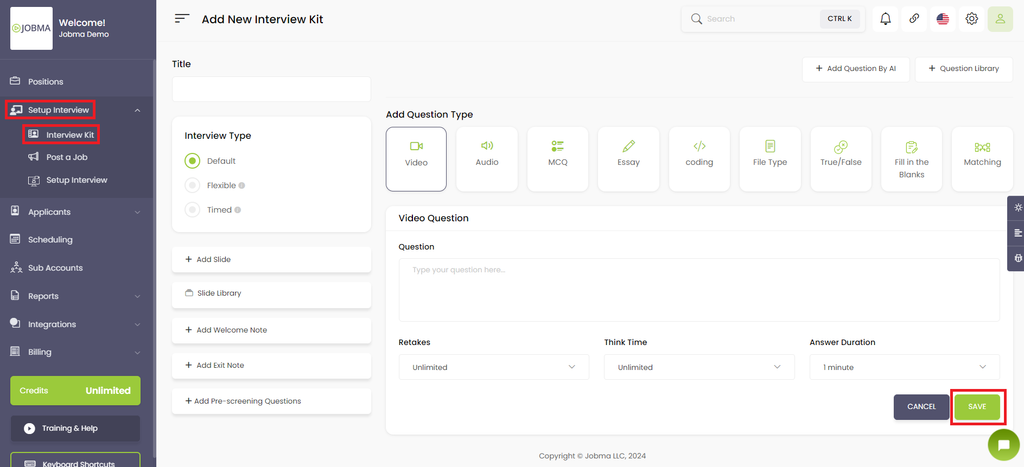
To begin, log in to both your Jobma and Spark.work accounts. Within your Jobma account, the first step involves creating an interview kit. Navigate to Set up Interview> Interview Kit, add your desired questions, and click Save.
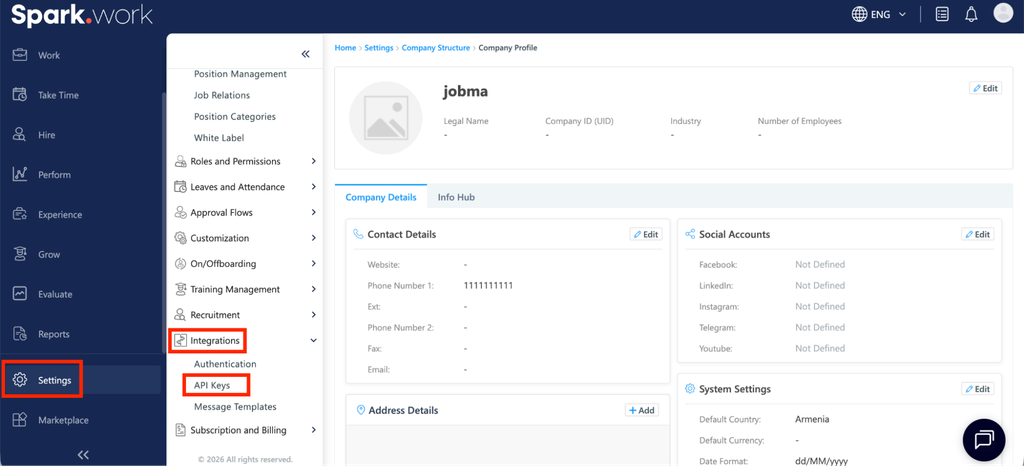
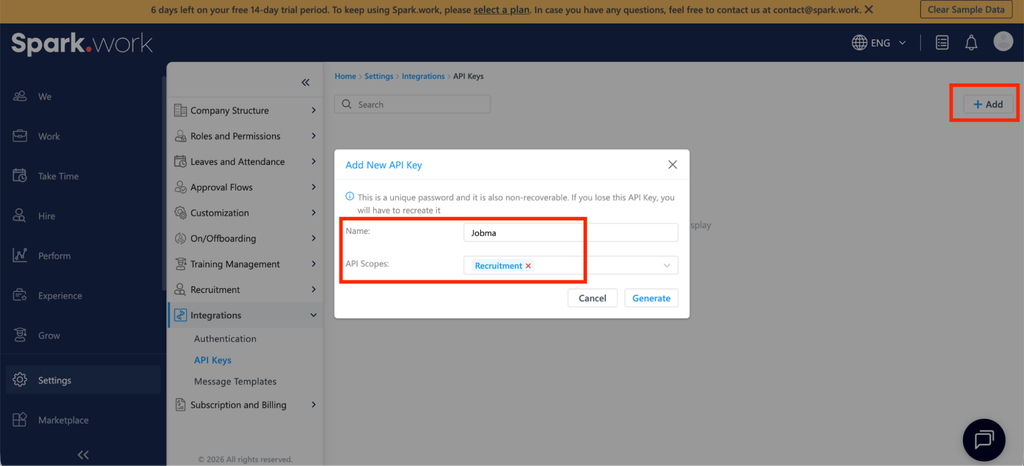
Go to your Spark.work account by navigating to Settings > Integrations and select API Keys.
Click on the Add button at the top right, enter “Jobma” under Name, select Recruitment under API scopes, and then click Generate.
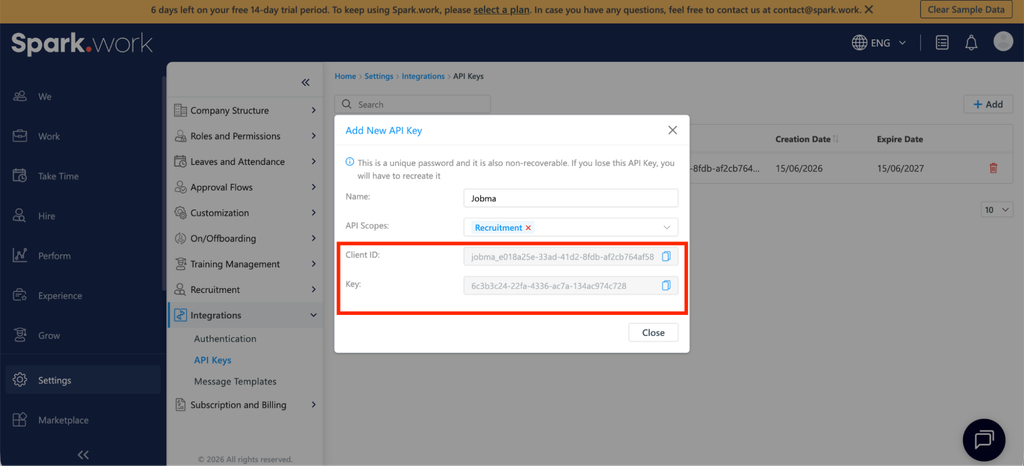
Copy the generated keys. You will need these to paste into your Jobma account in the next step.
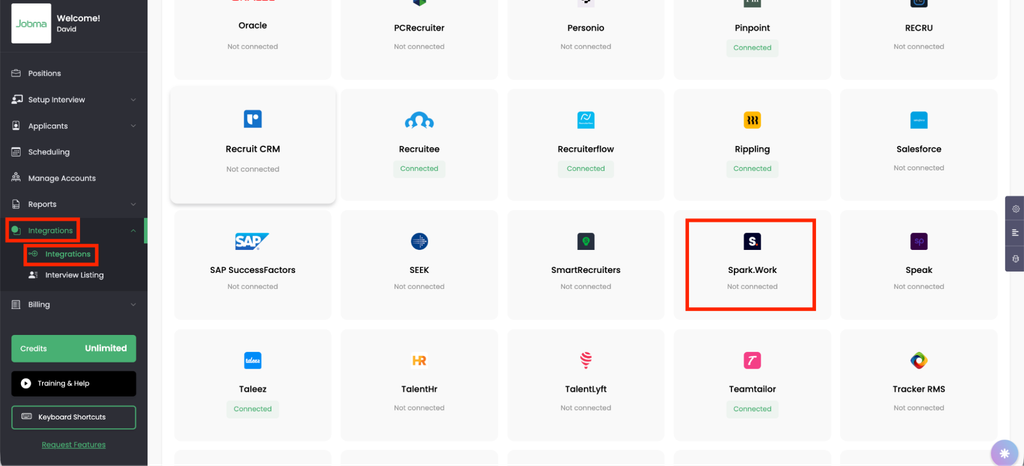
In your Jobma account, go to Integrations > Integrations on the left navigation panel, and select “Spark.work” from the list.
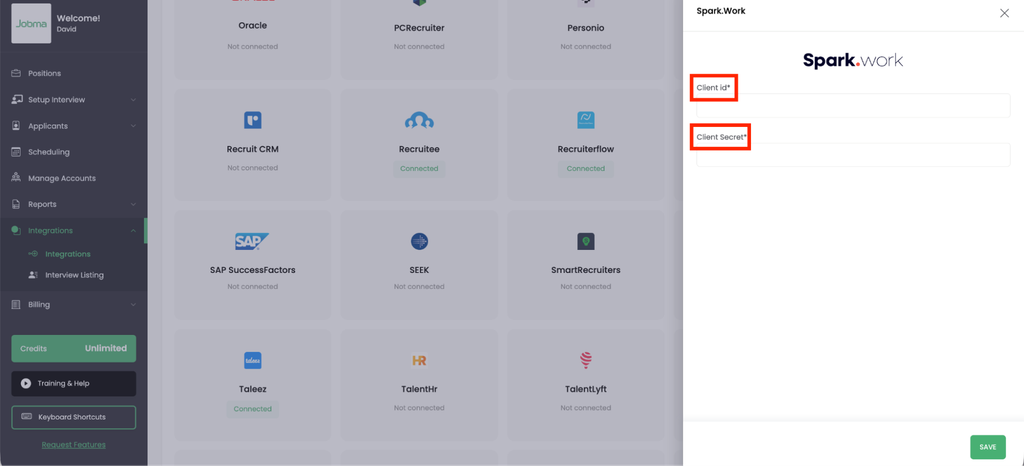
Enter the Client ID and Client Secret here, then click Save.
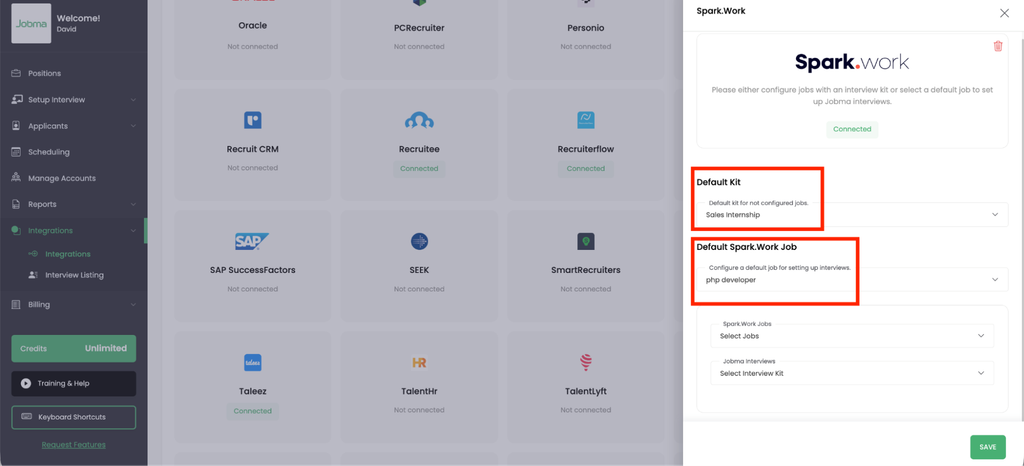
Once saved, click “Spark.work” (Under Integrations) and select a default interview kit and a default Job (Synced from Spark.work)
You have now successfully configured your Jobma and Spark.work accounts.
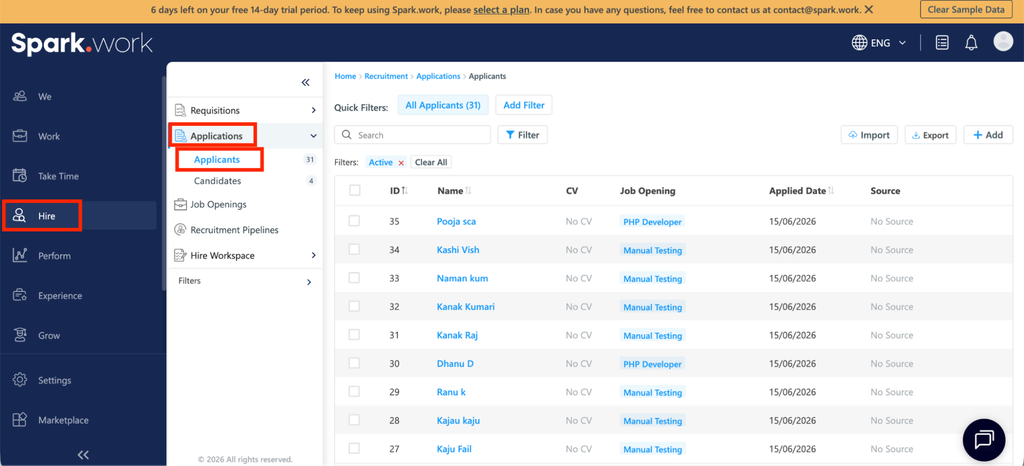
Now it’s time to invite candidates for Jobma interviews. In Spark.work, navigate to Hire > Applications > Applicants. From here, you can either select an existing candidate or create a new one.
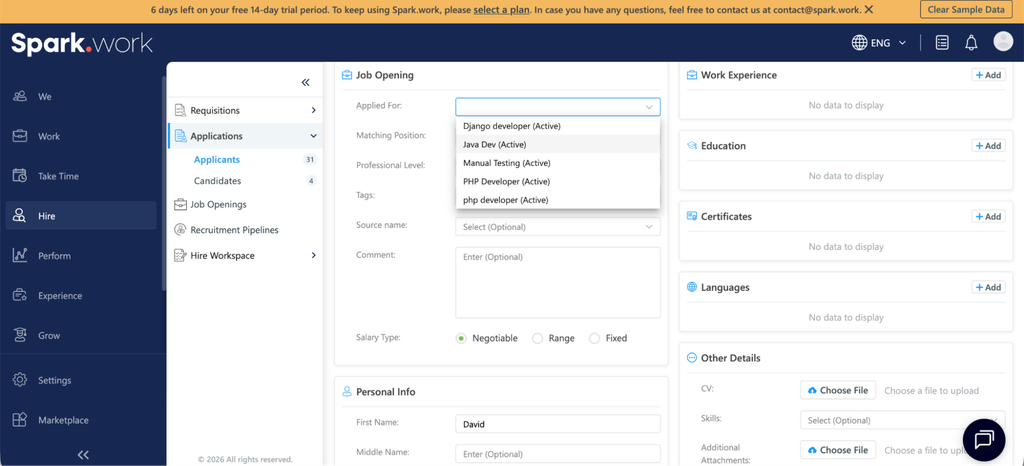
If you’re adding a new candidate, click on Add, enter the candidate details, and click Save.
Then, select the job you want to associate with the candidate. If you select the job that is set up under Jobma, this will automatically trigger an interview invite.
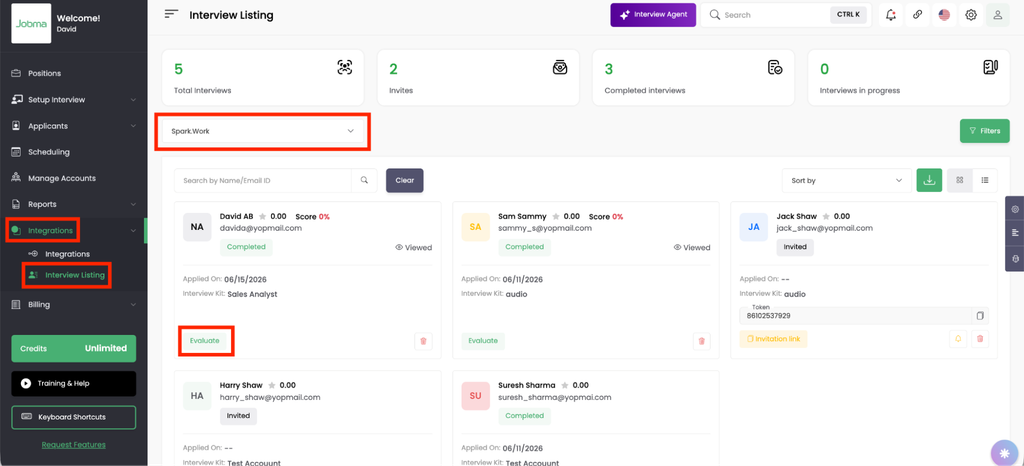
After the candidate completes the interview, you can watch it under Jobma by navigating to Integrations > Interview Listing and selecting Spark.work from the drop-down.
Your integration is ready to use. If you have any questions or need help, please reach out to your Jobma support representative at support@jobma.com