Jobma Integrates with Asana
Asana is a work management platform that helps teams organize projects, manage tasks, and keep workflows connected in one place. Jobma integrates with Asana to help recruitment teams automate and manage hiring workflows in Asana, streamlining processes and improving hiring outcomes.
To integrate Asana with your Jobma recruiter account, follow the steps below:
Step 1
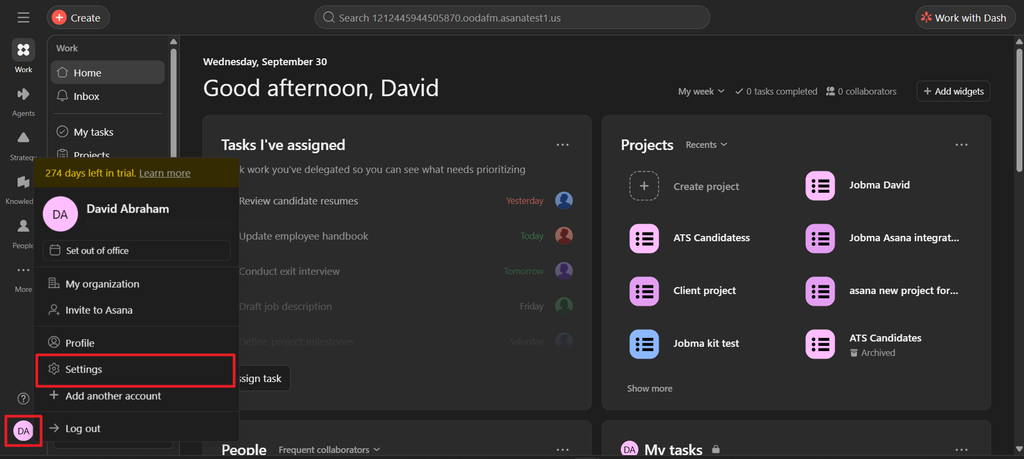
To begin, log in to your Asana account. From the lower-left corner, click your initials icon and select Settings.
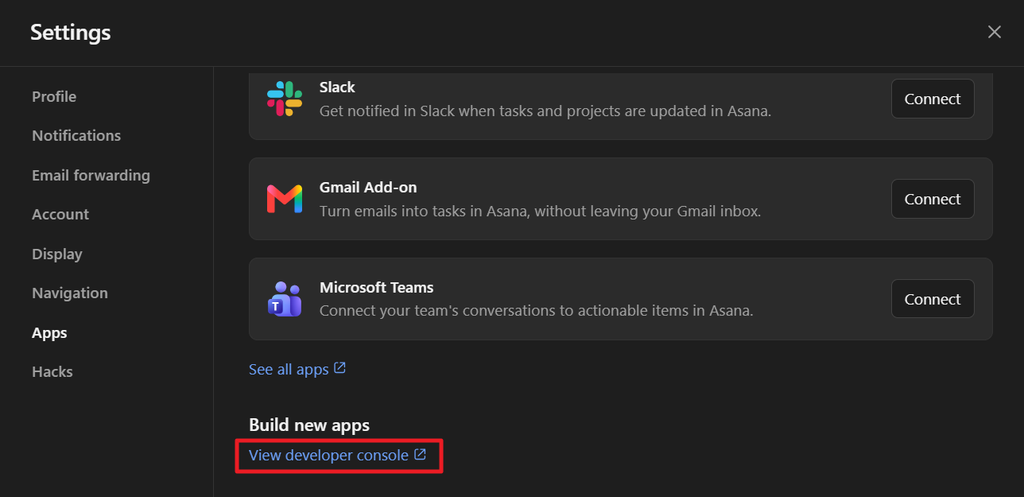
From the left menu, go to Apps and click View developer console.
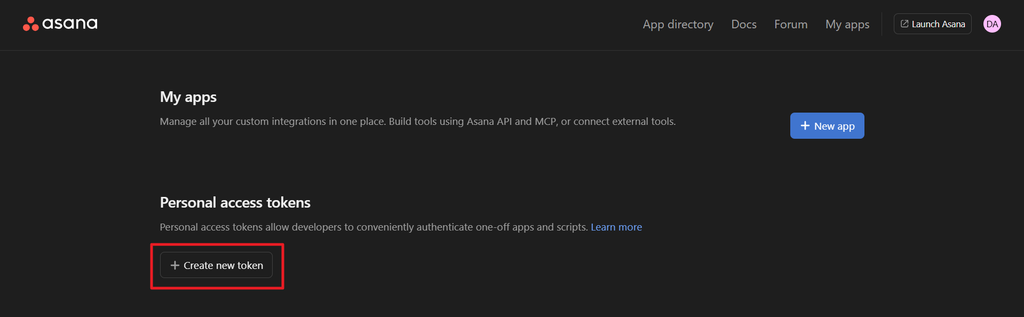
In the developer console, click Create new token to begin conencting Jobma.
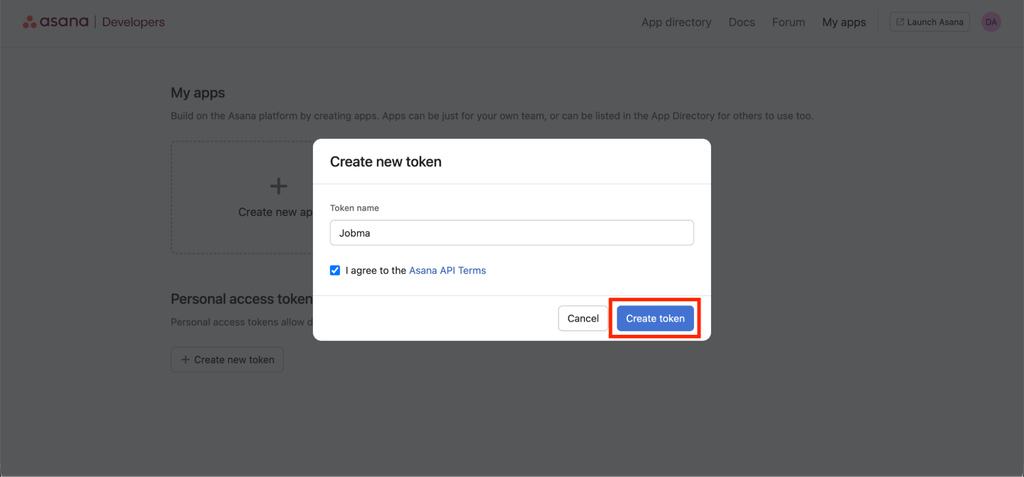
Enter Jobma as the token name. Review and accept the Asana API terms, and click Create Token to proceed.
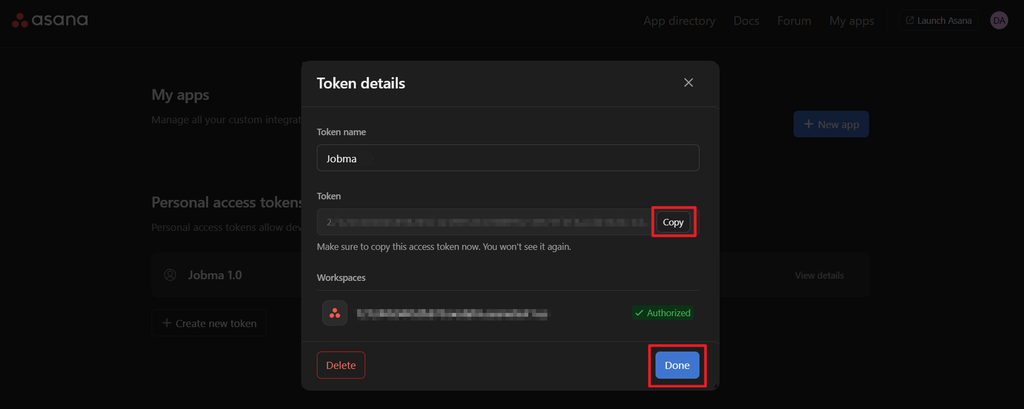
Copy the generated integration token; you’ll need it in the later steps. Click Done.
Step 2
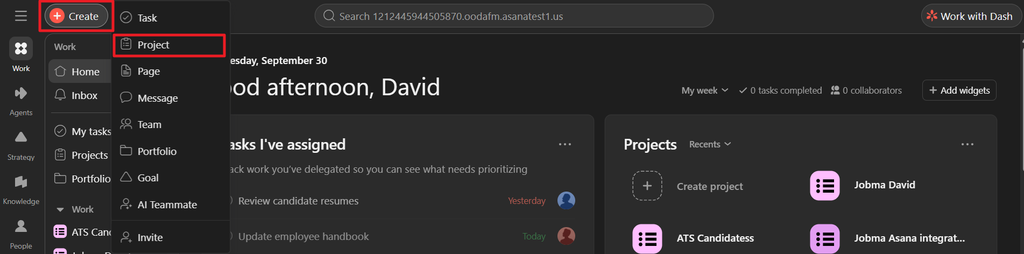
Next, in Asana, create a new project for your Jobma-specific interview workflow by going to Create > Project.
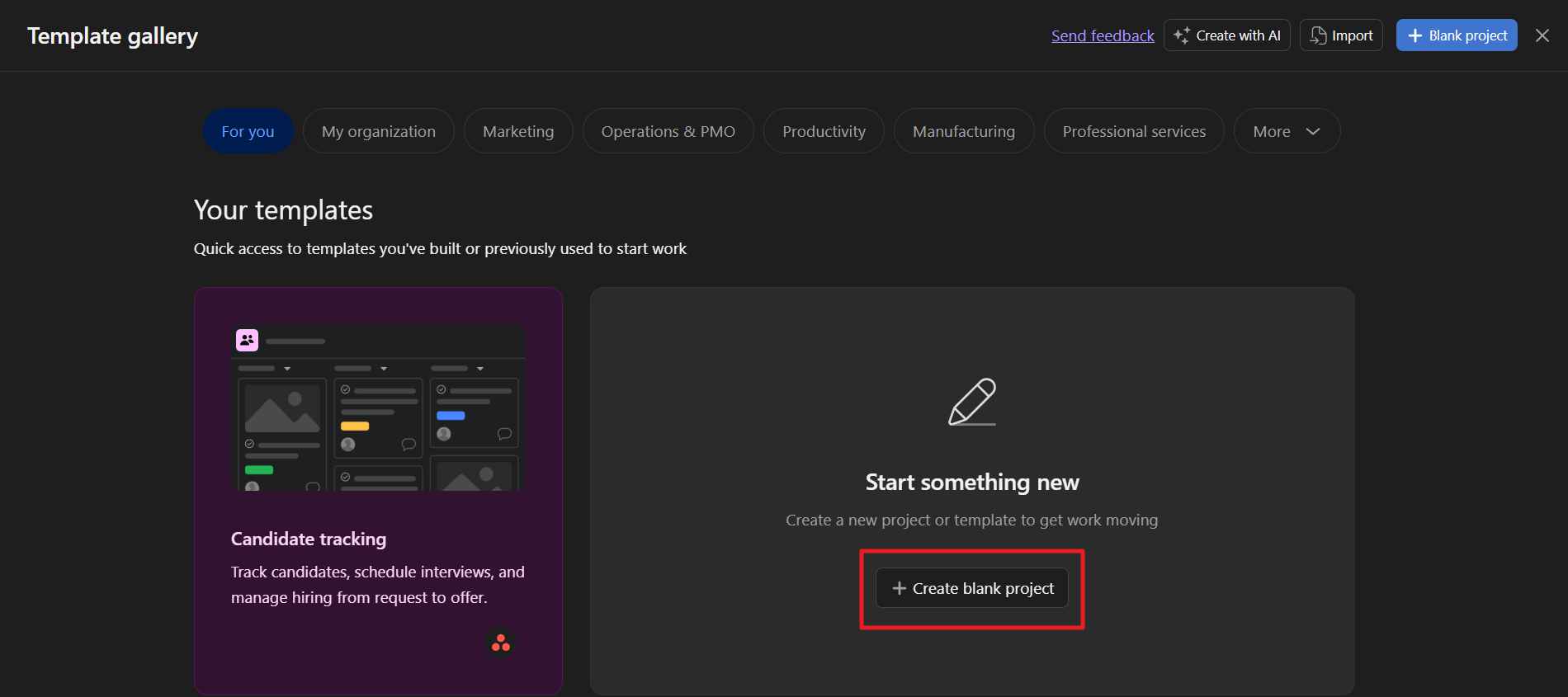
Select Create blank project to create a new project from scratch.
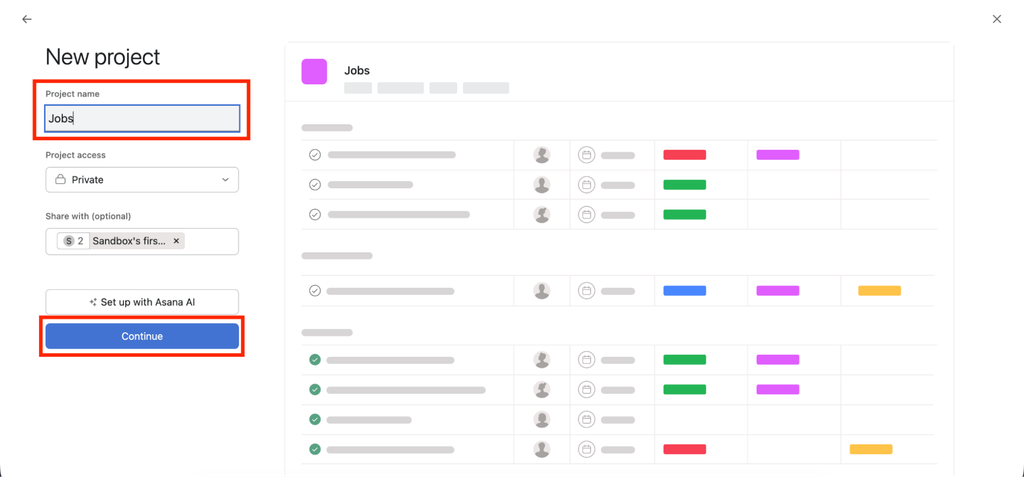
Enter the project name of your choice. Click Continue to complete the project setup.
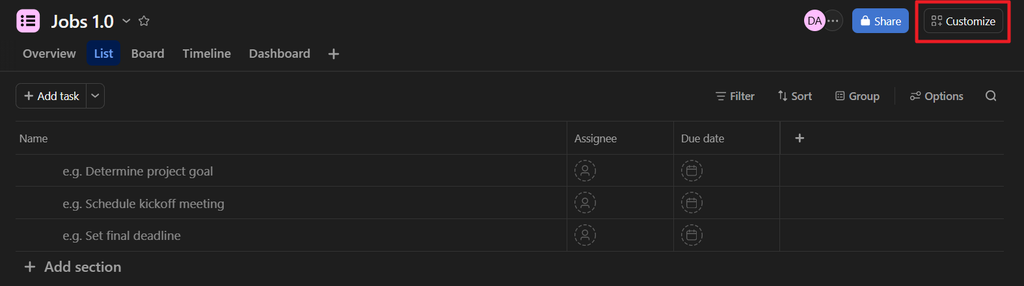
Inside the project, click Customize.
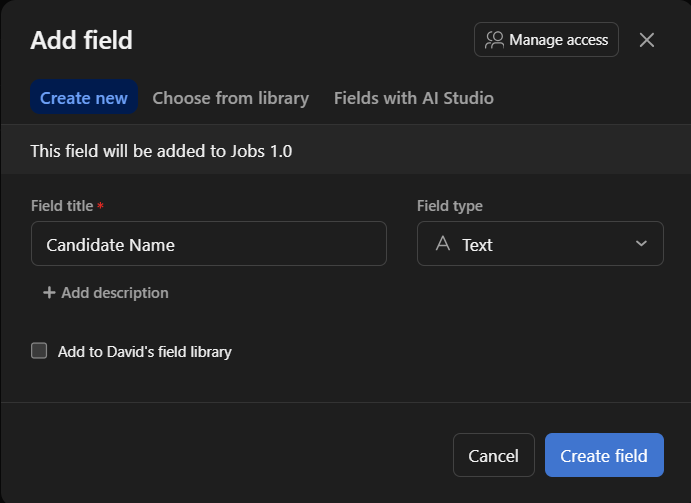
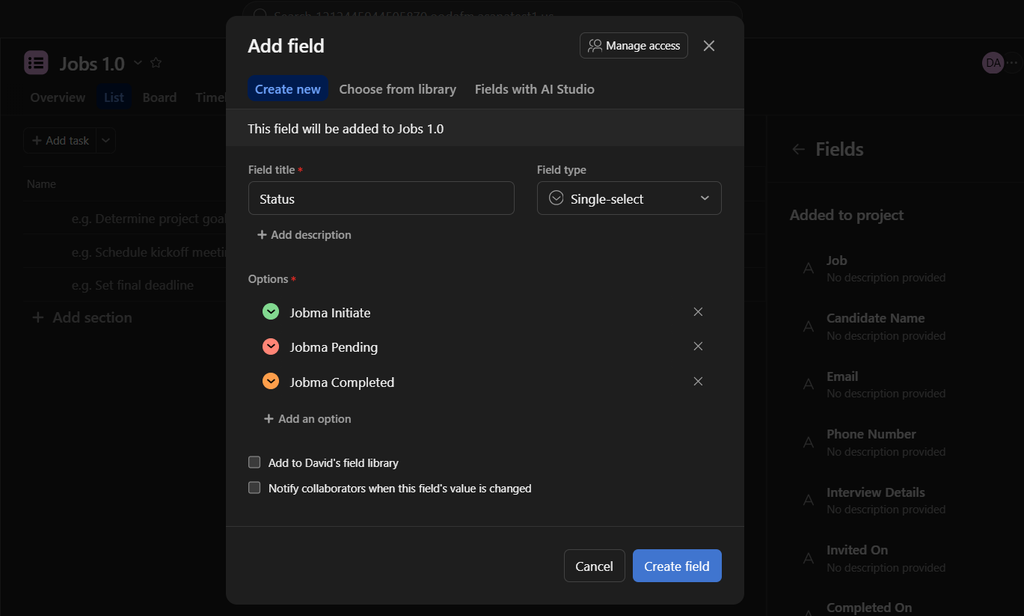
Then, select Fields to create the following custom fields:
- Candidate Name
- Created On
- Finished On
- Interview Details
Select Text as the field type for all the custom fields.
Also create a custom field for interview status. Choose Single Select as the field type, and add the following options:
- Jobma Initiate (indicates a Jobma interview invite has been sent to the candidate)
- Jobma Pending (indicates the candidate is yet to complete the Jobma interview)
- Jobma Completed (indicates the candidate has completed the Jobma interview)
These statuses indicate where a candidate stands in the application process as they’re invited to and move through pre-recorded interviews.
Step 3
Log in to your Jobma account. From the left navigation, open the Integrations section and select Asana from the list of integrations.
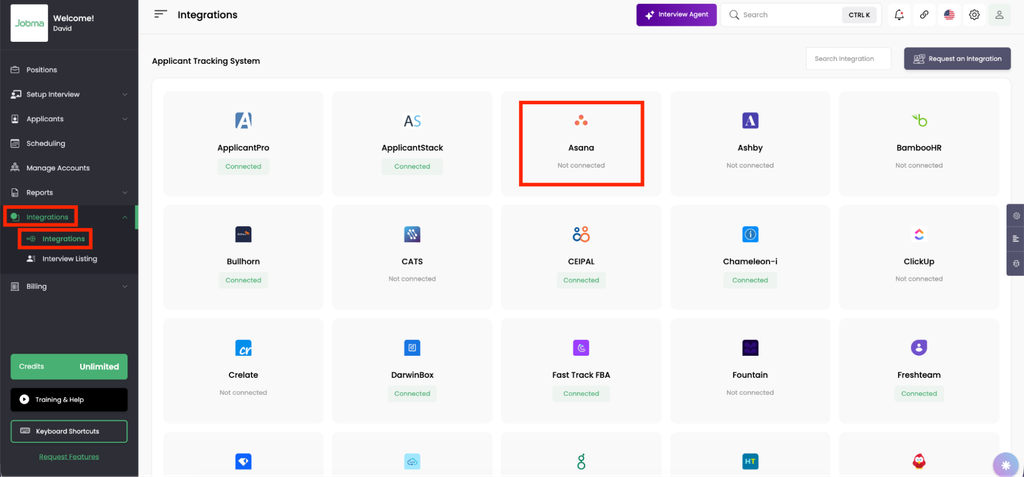
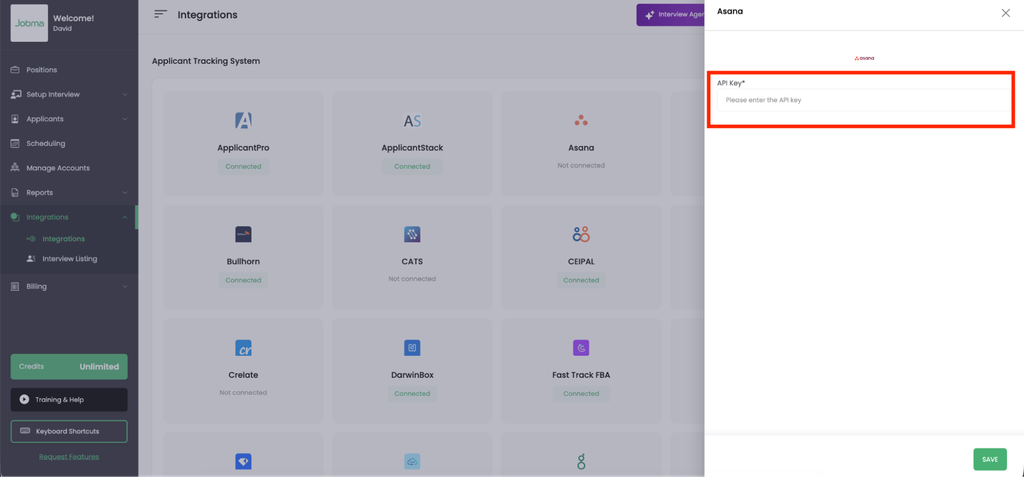
In the Asana window, paste the integration token you copied earlier from Asana and click Save.
Click Asana again to select the Jobma-specific project you created in Asana, and configure the respective fields for Candidate Name, Email, Interview Details, Invited On, and Completed On.
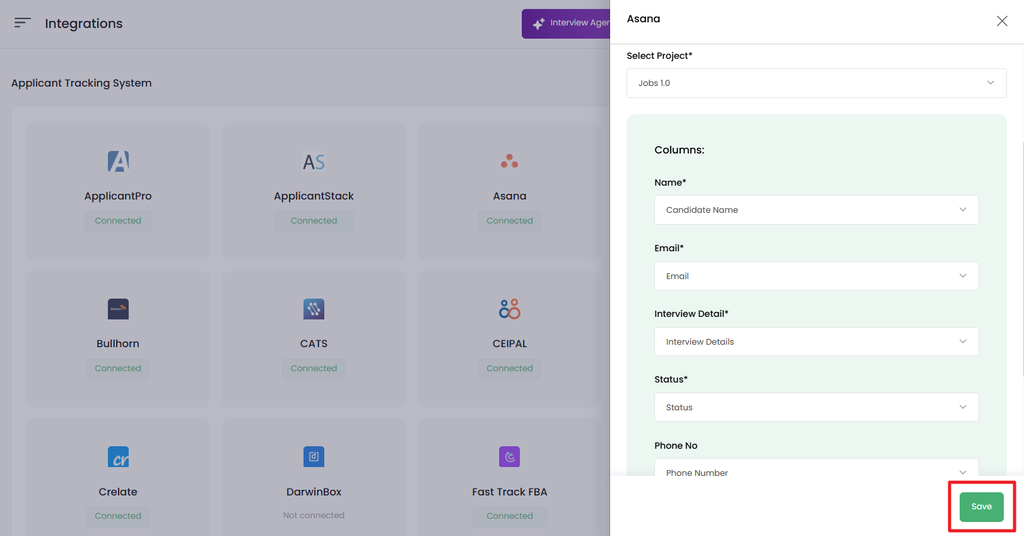
Once done, click Save. The integration will be connected, and the interview data will be automatically synced between Asana and Jobma.
To test that the integration is working properly, let’s invite a candidate for a Jobma interview.
Step 4
In Asana, open the Jobma-specific project and click Add Task. Here, you can add the requisition details, such as the project, role, or location you’re hiring for. Then, enter the candidate’s name and email address. Select the interview kit you want to use under the Jobma Interview Packages column. The interview kits are automatically populated here from your Jobma account.
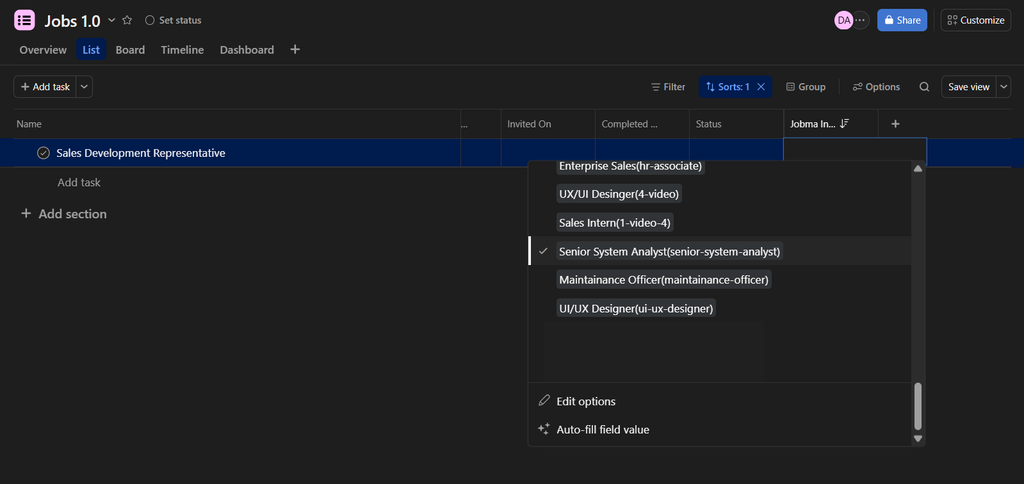
Then, select the candidate’s status as Jobma Initiate. This sends an automated email to the candidate inviting them to complete a pre-recorded video interview. The status will automatically change to Jobma Pending. You can access the interview link in the Interview Details column.
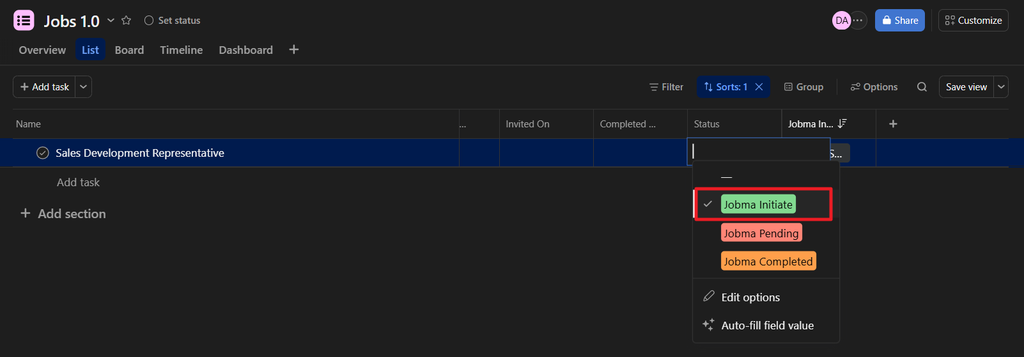
Once the candidate completes the interview, their status automatically changes to Jobma Completed. You can access the evaluation link in the candidate’s task in the Interview Details column.
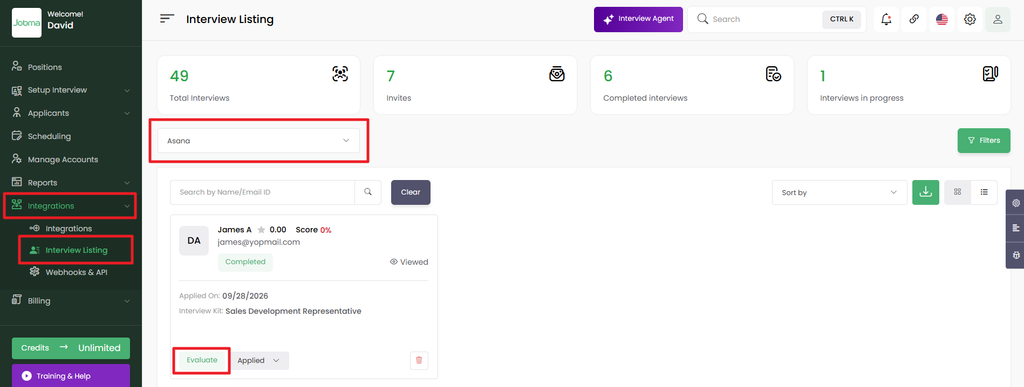
You can access the interview details from Jobma. From the left navigation, select Integrations and open the Interview Listing page. Choose Asana from the list of integrations to view all connected candidate profiles. Click Evaluate to open the evaluation form, where you can view and rate candidate responses and leave comments.
You’re all set!
Your integration is ready to use. If you have any questions or need help, please reach out to your Jobma support representative at support@jobma.com