Jobma Integrates with LaborEdge
LaborEdge’s Nexus ATS is a healthcare-focused applicant tracking system designed to streamline high-volume, compliance-driven hiring with precision and speed. Jobma & LaborEdge have partnered to enable hiring teams to seamlessly manage video interviews within their existing workflows, enabling faster candidate evaluation, structured screening, and improved hiring outcomes without switching platforms.
To integrate LaborEdge in your Jobma recruiter account, follow the steps below:
Step 1
Log in to your Jobma account. From the left navigation bar on your account dashboard, go to Integrations > Integrations. Select LaborEdge from the displayed integrations.
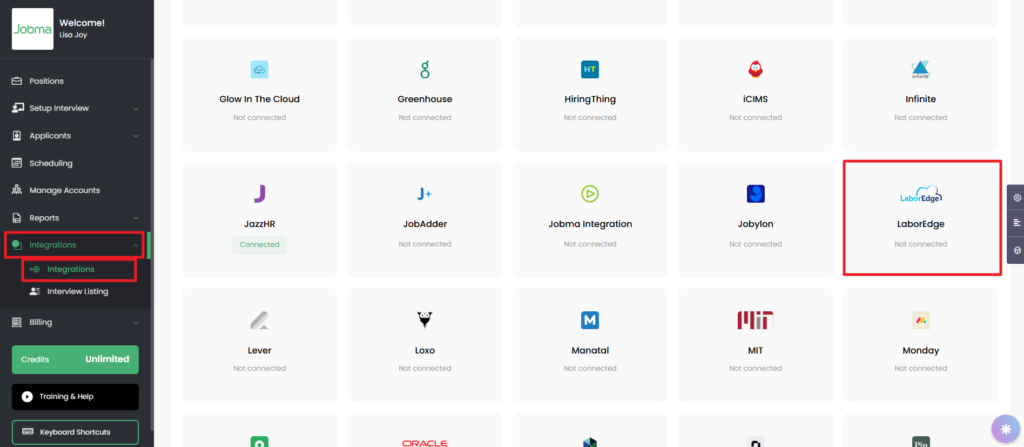
In the LaborEdge form displayed on the right side of the page, enter your Nexus account credentials:
- Username
- Password
- Organization Code
Please contact your LaborEdge account administrator to get these credentials.
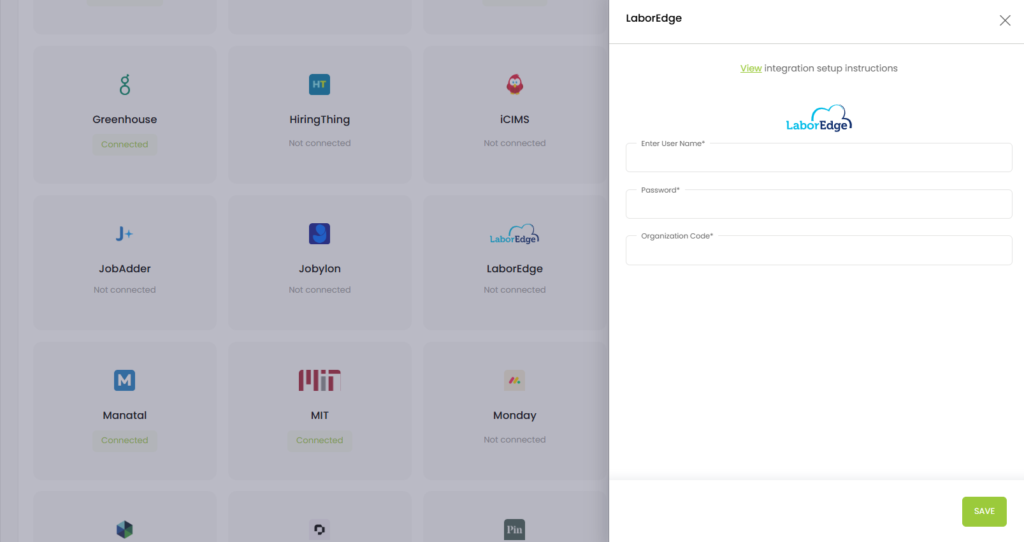
Once you’ve added the details, click Save.
Once you save the details, Jobma is successfully integrated into your LaborEdge Nexus account.
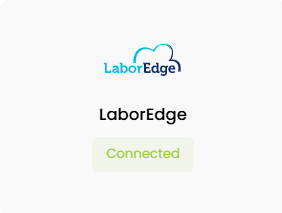
Note: Before the integration is complete, please contact your LaborEdge account administrator to create a Jobma-specific note type in the Journal section of your LaborEdge account.
Step 2
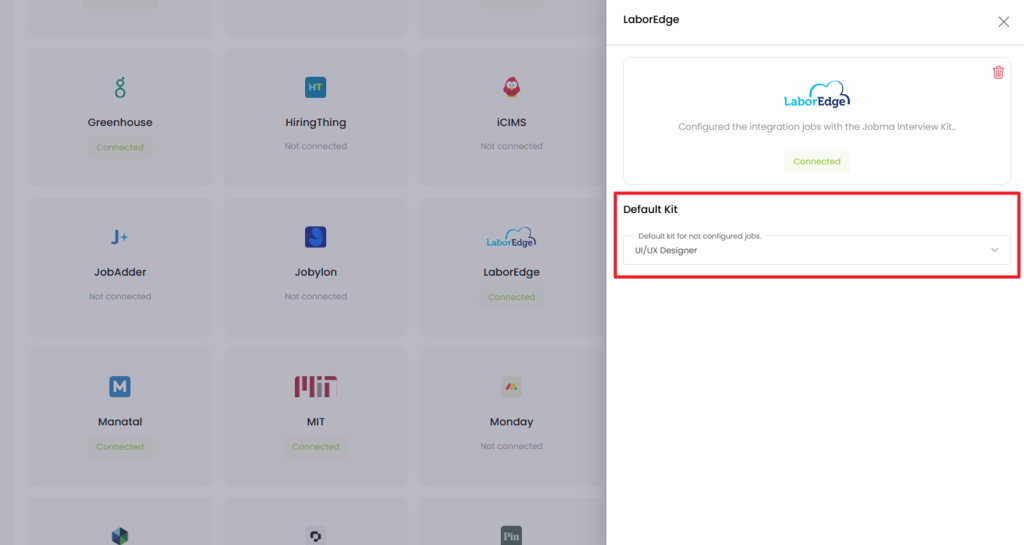
Open the integration again to link an interview kit. From the Default Kit dropdown, select the interview kit you’d like to use. You can either choose from the existing kits or add a new LaborEdge-specific kit from Setup Interview > Interview Kit. You can revisit this form any time to change the default kit.
Step 3
To test that the integration is working properly, let’s add a new candidate to Nexus ATS and invite them for a Jobma interview.
Log in to your Nexus ATS account. From the top menu, go to Admin > Master Data. Next, click Add Candidate Status from the upper-right corner.
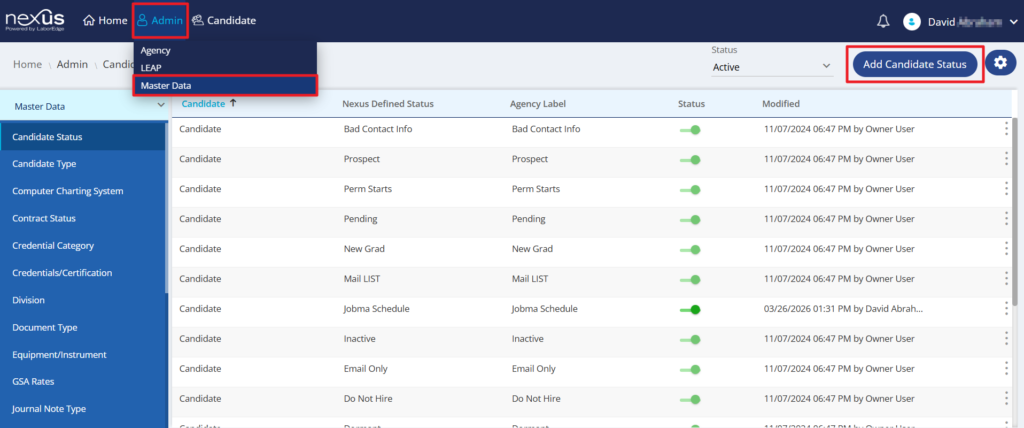
In the Organization Candidate Status window, select the following details:
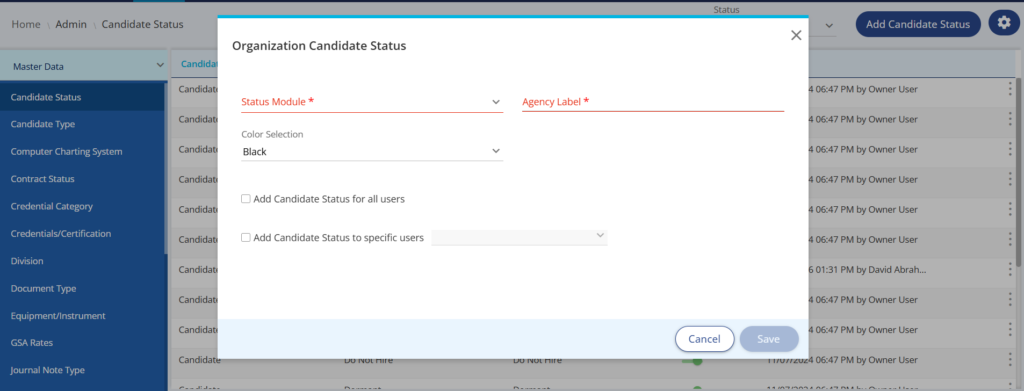
- Status Module: From the dropdown, select Candidate.
- Agency Label: Enter Jobma Schedule. Every time you move a candidate to this status, Jobma sends an automated interview invite to the candidate.
Once done, click Save.
Next, go to Candidate > Candidate Management and click Add Candidate.

Enter the candidate’s details, such as first name, last name, profession, speciality, primary speciality, address, etc., and select the Jobma Schedule status. Once you’ve added all the details, click Save.
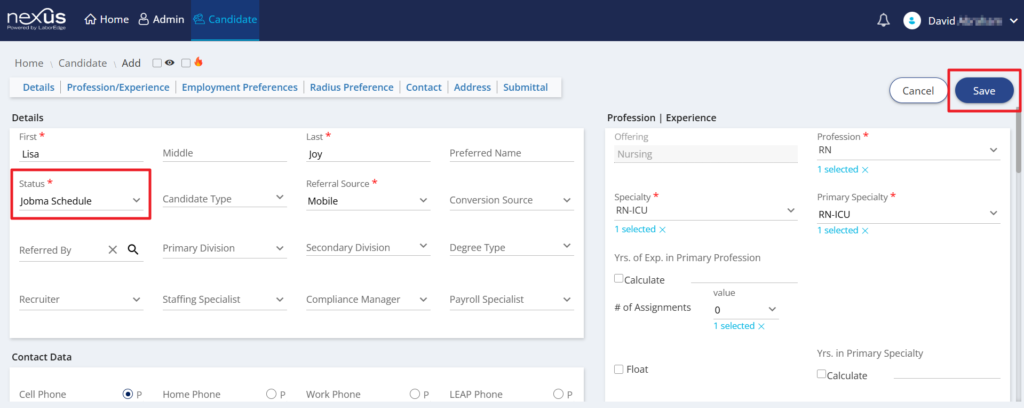
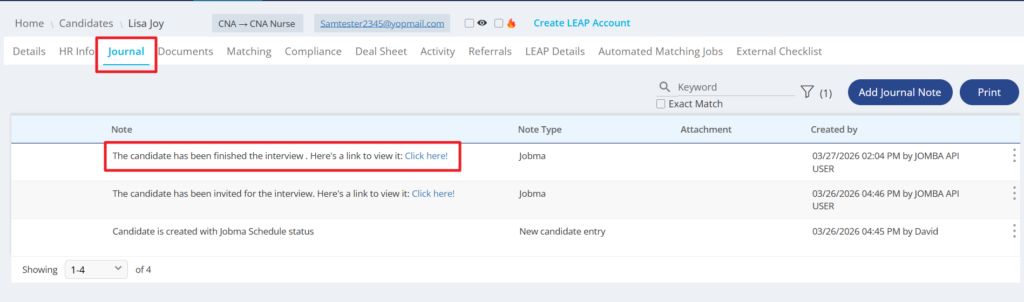
This sends an automated email to the candidate inviting them to complete a pre-recorded interview.
You can access the invite link in the Note section of the Journal tab.
Step 4
Once the candidate completes their pre-recorded interview, the evaluation link is also shown in the Note section in the Journal tab.
Click the link to open the evaluation form, where you can view and rate candidate responses and leave comments.
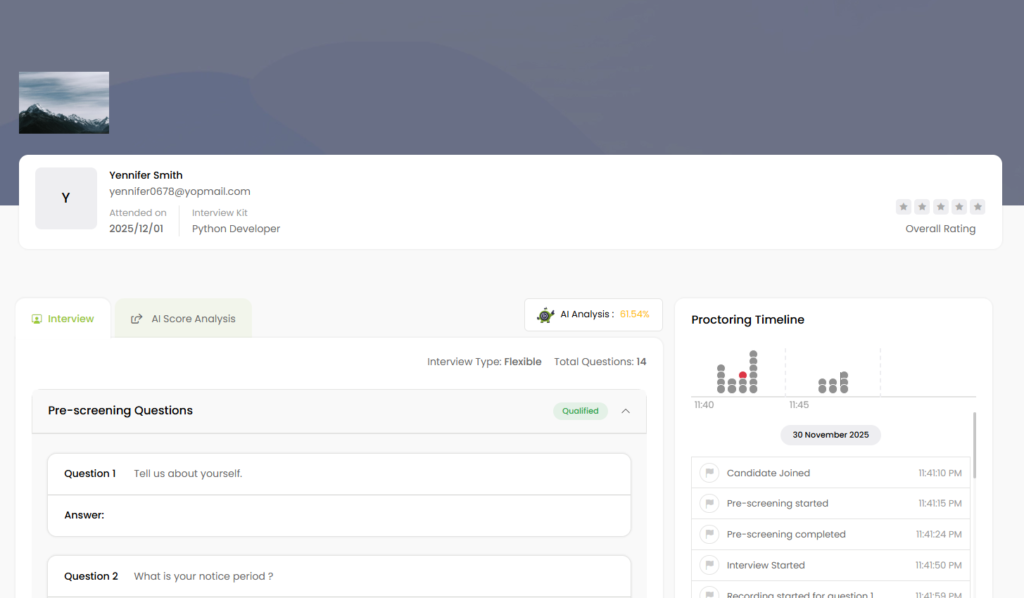
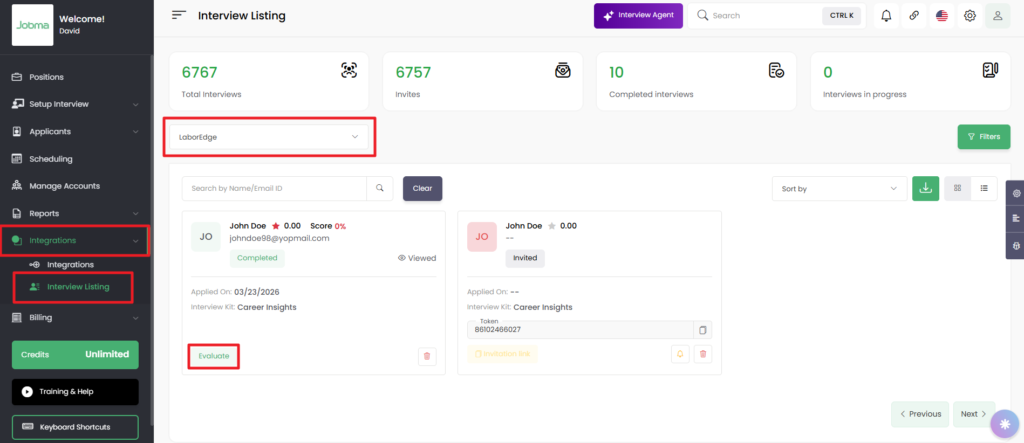
To access the candidate’s interview in Jobma, navigate to Integrations > Interview Listing. Choose LaborEdge from the list of active integrations. The candidate profiles linked to this integration will be displayed on the screen. Click Evaluate to view the candidate’s interview and assess them.
You’re All Set!
Your integration is ready to use! If you have any questions or need help, please reach out to your Jobma support representative.